Unlock the full potential of AWS with the AWS CLI—a command-line powerhouse that puts cloud control at your fingertips. Whether you’re automating tasks or managing infrastructure, mastering the AWS CLI is a game-changer for developers and DevOps pros alike.




What Is AWS CLI and Why It’s a Game-Changer

The AWS Command Line Interface (CLI) is a unified tool that allows you to interact with Amazon Web Services using simple commands in your terminal or command prompt. It’s not just a convenience—it’s a necessity for anyone serious about managing AWS resources efficiently.
Understanding the Core Functionality
The AWS CLI enables users to control multiple AWS services from the command line and automate them through scripts. This includes launching EC2 instances, managing S3 buckets, configuring IAM roles, and much more—all without needing to log into the AWS Management Console.
- Direct access to over 200 AWS services
- Supports JSON, text, and table output formats
- Can be integrated into automation pipelines and CI/CD workflows
“The AWS CLI is the Swiss Army knife of cloud management—compact, powerful, and indispensable.” — AWS Certified Solutions Architect
Benefits Over the AWS Console
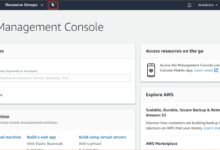
While the AWS Management Console offers a user-friendly graphical interface, the AWS CLI provides precision, speed, and repeatability. For example, launching 10 EC2 instances via the console requires repetitive clicking, whereas a single CLI command can achieve the same result instantly.
- Faster execution for repetitive tasks
- Enables infrastructure-as-code practices
- Reduces human error through scripting
How to Install and Configure AWS CLI
Getting started with the AWS CLI involves two key steps: installation and configuration. Once set up, you’ll have seamless access to your AWS environment from any terminal.
Installation Across Operating Systems
The AWS CLI can be installed on Windows, macOS, and Linux. AWS recommends using the bundled installer for most users, but advanced users may prefer pip (Python package manager) for greater control.
- Windows: Download the MSI installer from the official AWS site and run it
- macOS: Use Homebrew (
brew install awscli) or the bundled installer - Linux: Use the bundled installer or package managers like yum or apt depending on your distro
Configuring AWS CLI with IAM Credentials
After installation, run aws configure to set up your credentials. You’ll need an access key ID and secret access key from an IAM user with appropriate permissions.
- Enter your AWS Access Key ID
- Enter your AWS Secret Access Key
- Set your default region (e.g.,
us-east-1) - Choose an output format (json, text, or table)
Pro Tip: Always use IAM roles with least-privilege permissions for security. Never use root account credentials.
Mastering Basic AWS CLI Commands
Once configured, you can begin interacting with AWS services. The syntax follows a consistent pattern: aws [service] [operation] [options]. Let’s explore some foundational commands.
Navigating EC2 Instances with AWS CLI
Amazon Elastic Compute Cloud (EC2) is one of the most commonly used services. You can launch, describe, and terminate instances using simple commands.
- Launch an instance:
aws ec2 run-instances --image-id ami-0abcdef1234567890 --instance-type t3.micro --key-name MyKeyPair - List running instances:
aws ec2 describe-instances --filters "Name=instance-state-name,Values=running" - Terminate an instance:
aws ec2 terminate-instances --instance-ids i-1234567890abcdef0
Managing S3 Buckets via Command Line
Amazon S3 is essential for object storage. The AWS CLI makes it easy to create buckets, upload files, and manage permissions.
- Create a bucket:
aws s3 mb s3://my-unique-bucket-name - Upload a file:
aws s3 cp local-file.txt s3://my-unique-bucket-name/ - List bucket contents:
aws s3 ls s3://my-unique-bucket-name - Sync folders:
aws s3 sync ./local-folder s3://my-unique-bucket-name/backup
Advanced AWS CLI Features You Should Know
Beyond basic commands, the AWS CLI offers advanced capabilities that boost productivity and enable complex automation scenarios.
Using Filters and Query Parameters
The --query parameter allows you to filter JSON responses using JMESPath expressions. This is invaluable when dealing with large datasets.
- Get only instance IDs:
aws ec2 describe-instances --query 'Reservations[*].Instances[*].InstanceId' --output table - Filter by tag:
aws ec2 describe-instances --filters "Name=tag:Environment,Values=production" - Combine query and filter: Extract public IPs of running web servers tagged as ‘WebServer’
Working with Pagination and Output Formats
Some AWS responses are paginated. Use --page-size and --max-items to control how data is retrieved. Additionally, choosing the right output format enhances readability.
- Use
--output jsonfor scripting and parsing - Use
--output tablefor human-readable reports - Use
--output textfor simple extraction in shell scripts
“Filtering output with –query saved our team hours of post-processing data.” — DevOps Engineer, TechScale Inc.
Automating Tasks with AWS CLI Scripts
One of the most powerful aspects of the AWS CLI is its ability to be scripted. This enables automation of repetitive tasks, deployment workflows, and scheduled operations.
Writing Shell Scripts for Routine Operations
You can write Bash or PowerShell scripts that chain multiple AWS CLI commands together. For example, a backup script might stop an instance, create an AMI, and restart the instance.
- Create a script to snapshot all EBS volumes daily
- Automate user creation in IAM across multiple accounts
- Deploy static websites to S3 with cache invalidation on CloudFront
Scheduling AWS CLI Jobs with Cron and Lambda
Use cron jobs on Linux or Task Scheduler on Windows to run CLI scripts at specific intervals. Alternatively, trigger AWS CLI commands via AWS Lambda using the AWS SDK.
- Schedule nightly log exports from CloudWatch to S3
- Run weekly cost reports using AWS Cost Explorer API
- Automate security audits by checking open security groups
Securing Your AWS CLI Environment
Security is paramount when using the AWS CLI. Misconfigured credentials or insecure scripts can lead to data breaches or unauthorized access.
Best Practices for Credential Management
Never hardcode credentials in scripts. Instead, use AWS profiles, IAM roles, or temporary credentials via AWS STS (Security Token Service).
- Use named profiles:
aws configure --profile devandaws configure --profile prod - Leverage temporary credentials with
aws sts get-session-token - Store credentials securely using AWS Secrets Manager or parameter stores
Enabling Logging and Monitoring for CLI Usage
AWS CloudTrail logs all CLI actions, providing an audit trail for security and compliance. Enable CloudTrail to monitor who did what and when.
- Track API calls made via the AWS CLI
- Set up alerts for suspicious activity (e.g., root login, unauthorized region access)
- Integrate with Amazon EventBridge for real-time notifications
“Every CLI command leaves a trace. Use CloudTrail to turn those traces into insights.” — AWS Security Specialist
Troubleshooting Common AWS CLI Issues
Even experienced users encounter issues with the AWS CLI. Knowing how to diagnose and fix common problems saves time and prevents frustration.
Resolving Authentication and Permission Errors
Errors like InvalidClientTokenId or AccessDenied usually stem from incorrect or expired credentials.
- Verify credentials with
aws sts get-caller-identity - Check IAM policies attached to the user/role
- Ensure MFA is configured if required by policy
Fixing Region and Endpoint Mismatches
If a service isn’t available in your default region, you’ll get endpoint errors. Always confirm the region supports the service you’re accessing.
- Set region explicitly:
aws --region us-west-2 ec2 describe-instances - Check service availability per region on the AWS Regional Services List
- Use environment variables:
export AWS_DEFAULT_REGION=eu-central-1
Integrating AWS CLI with CI/CD Pipelines
In modern DevOps environments, the AWS CLI is a critical component of continuous integration and deployment (CI/CD) pipelines. It enables automated deployments, infrastructure provisioning, and testing.
Using AWS CLI in Jenkins and GitHub Actions
Jenkins and GitHub Actions can execute AWS CLI commands during pipeline runs. You must securely inject credentials using environment variables or secrets.
- In Jenkins: Use the AWS CLI plugin or execute shell steps with AWS commands
- In GitHub Actions: Use
aws-actions/configure-aws-credentialsto set up credentials - Deploy Lambda functions automatically after code push
Deploying Infrastructure as Code with AWS CLI and CloudFormation
While tools like Terraform are popular, AWS CloudFormation can be fully managed via the AWS CLI. This allows you to create, update, and delete stacks programmatically.
- Create a stack:
aws cloudformation create-stack --stack-name my-stack --template-body file://template.yaml - Update a stack:
aws cloudformation update-stack --stack-name my-stack --template-body file://updated-template.yaml - Delete a stack:
aws cloudformation delete-stack --stack-name my-stack
“We reduced deployment time by 70% by integrating AWS CLI with our CI/CD pipeline.” — Lead DevOps Engineer, CloudNexa
Exploring AWS CLI v2 vs v1: Key Differences
AWS CLI v2 introduced significant improvements over v1, including better installation, enhanced features, and improved usability. Understanding the differences helps you make the most of the latest version.
New Features in AWS CLI v2
Version 2 includes built-in support for SSO, improved auto-prompting, and better handling of Docker environments.
- Support for AWS Single Sign-On (SSO) without extra configuration
- Interactive auto-prompt mode: Press
Ctrl+Spaceto get command suggestions - Bundled installer eliminates Python dependency
- Improved session token handling for MFA
Migrating from AWS CLI v1 to v2
Migrating is straightforward but requires attention to compatibility and configuration.
- Uninstall v1 before installing v2 to avoid conflicts
- Existing configurations in
~/.aws/configand~/.aws/credentialsare compatible - Test scripts thoroughly, especially those using JSON parsing or output formatting
Real-World Use Cases of AWS CLI in Production
Organizations across industries use the AWS CLI to streamline operations, reduce costs, and improve reliability. Here are some practical examples.
Automated Backup and Disaster Recovery
Companies use the AWS CLI to automate nightly backups of databases, EC2 snapshots, and S3 versioning, ensuring quick recovery during outages.
- Schedule RDS snapshot exports using Lambda and CLI
- Replicate critical S3 data across regions using
aws s3 sync - Test DR plans by spinning up environments from AMIs
Cost Optimization and Resource Cleanup
Unused resources waste money. Teams use the AWS CLI to identify and remove idle instances, unattached EBS volumes, and orphaned snapshots.
- List unattached EBS volumes:
aws ec2 describe-volumes --filters Name=status,Values=available - Delete old AMIs and associated snapshots
- Generate monthly cost reports using AWS Cost Explorer CLI commands
What is the AWS CLI used for?
The AWS CLI is used to manage Amazon Web Services from the command line. It allows users to control services like EC2, S3, Lambda, and IAM through scripts or direct commands, enabling automation, infrastructure management, and integration with DevOps pipelines.
How do I install AWS CLI on Windows?
Download the MSI installer from the official AWS website, run it, and follow the prompts. After installation, open Command Prompt or PowerShell and run aws configure to set up your credentials and region.
Can I use AWS CLI with MFA?
Yes, AWS CLI supports Multi-Factor Authentication (MFA). You can use temporary credentials obtained via aws sts get-session-token with your MFA device. These credentials can be exported as environment variables or stored in a named profile.
Is AWS CLI v2 backward compatible with v1?
Most AWS CLI v1 commands work in v2, making it largely backward compatible. However, some output formats and behaviors may differ slightly. It’s recommended to test scripts after upgrading.
How can I automate AWS tasks using the CLI?
You can automate tasks by writing shell scripts (Bash, PowerShell) that chain AWS CLI commands. These scripts can be scheduled using cron (Linux) or Task Scheduler (Windows), or triggered via CI/CD tools like Jenkins, GitHub Actions, or AWS Lambda.
Mastering the AWS CLI unlocks unparalleled control over your cloud environment. From basic commands to advanced automation and security practices, this tool is essential for efficient cloud management. Whether you’re a developer, sysadmin, or DevOps engineer, leveraging the AWS CLI can dramatically improve your productivity, reduce errors, and enable scalable infrastructure operations. Start exploring its capabilities today and take your AWS expertise to the next level.
Recommended for you 👇
Further Reading: